
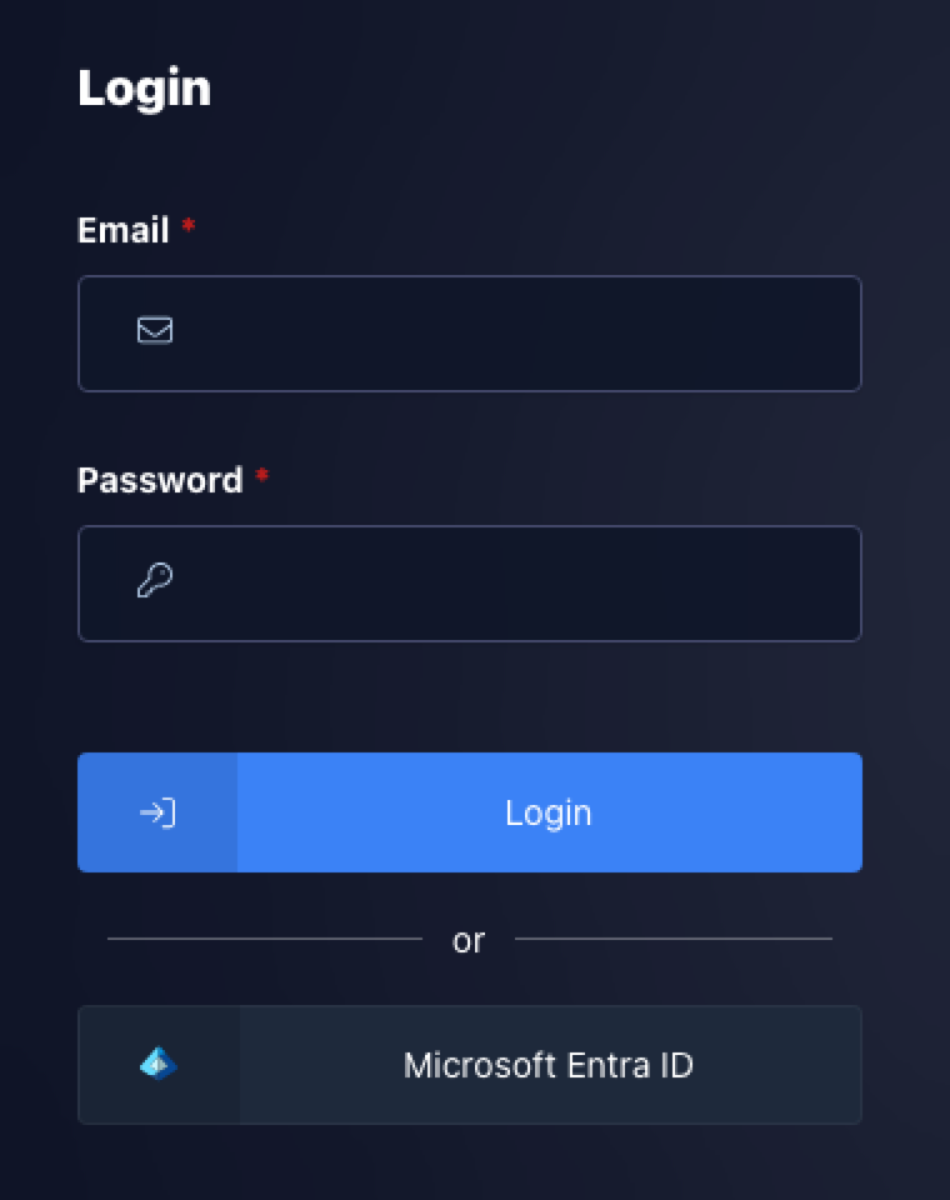
- Go to workspace.cloudtria.com and log in with the email and password we gave you. If your organisation uses Microsoft 365, click Microsoft Entra ID to sign in with your work account.
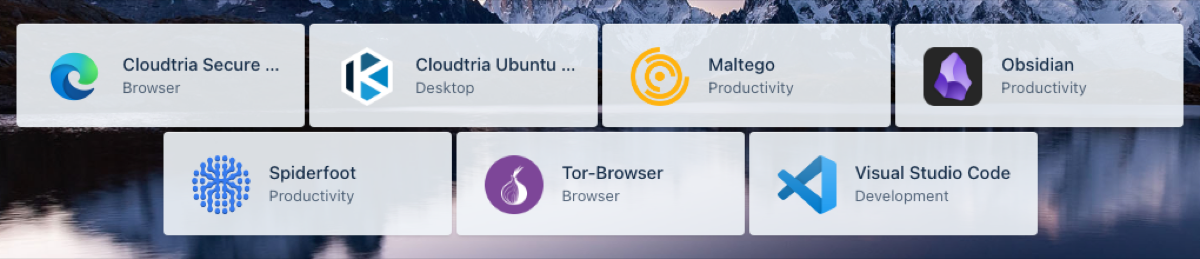
- Click Cloudtria Secure Browser.
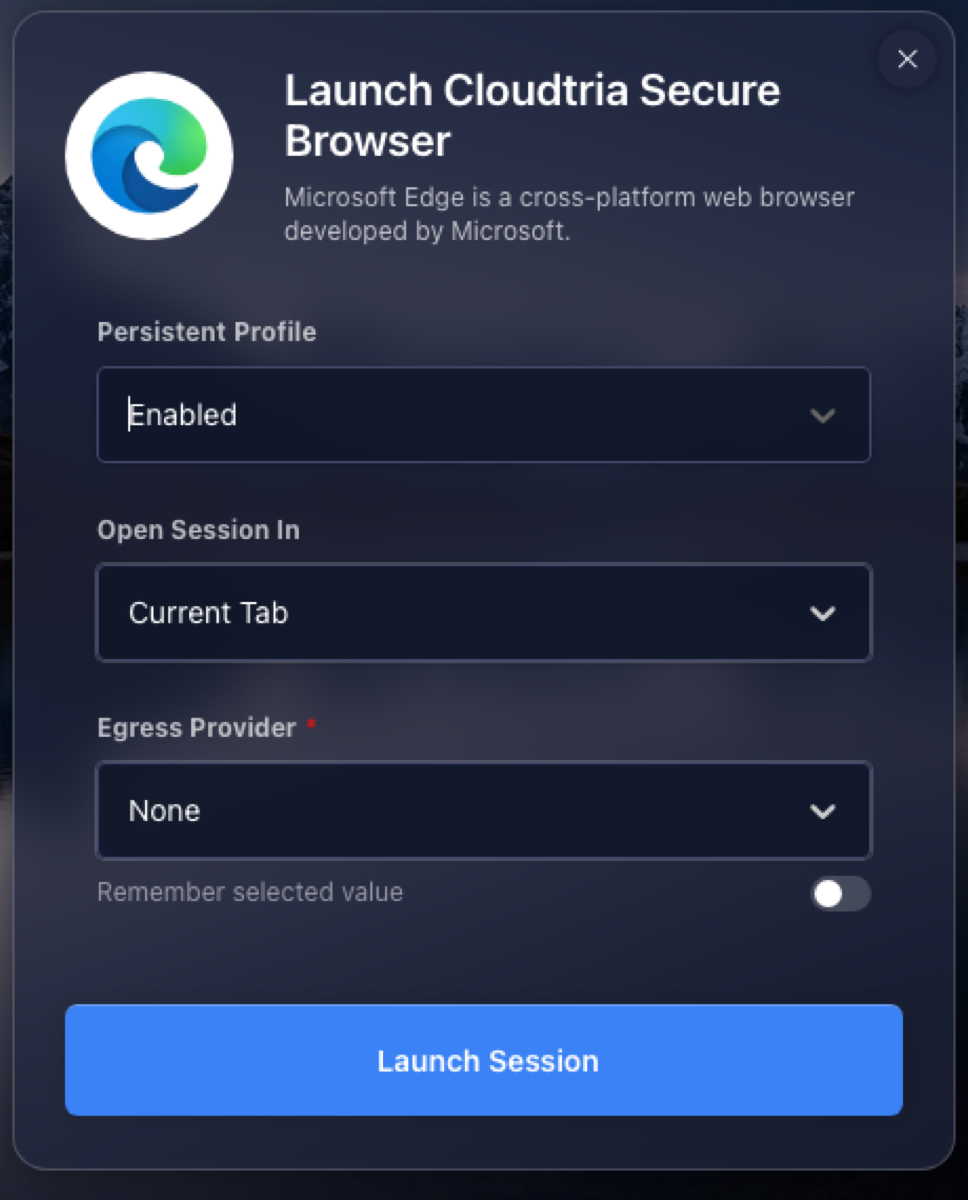
- Check the options:
- Persistent Profile: Enabled keeps your bookmarks and settings for next time. Choose Disabled for a completely clean browser that forgets everything.
- Open Session In: the current tab or a new one.
- Click Launch Session. Your browser is ready in a few seconds.
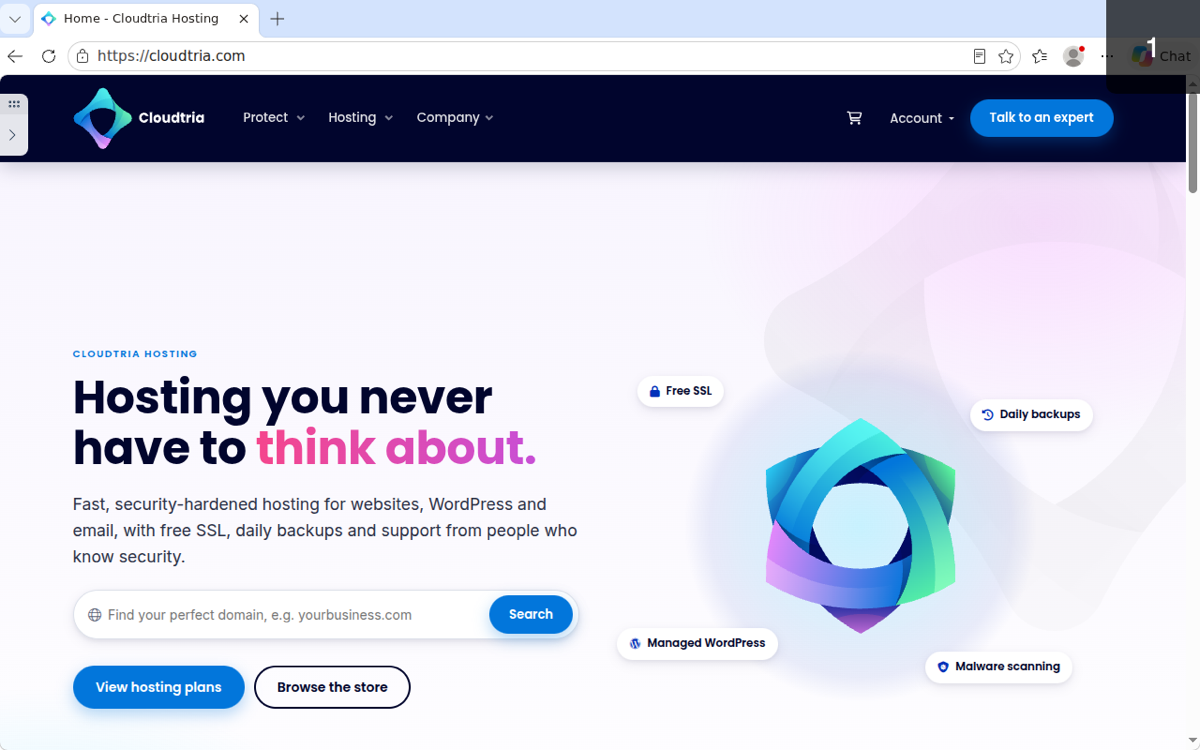
Use it like any browser: type an address at the top and browse.
Next: the session control panel.