
Every mailbox has a spam filter that checks incoming mail. You choose what happens to messages it thinks are spam.
- In the control panel, go to Mail and click the email address.
- Open the Spam Filter tab and make sure Switch on spam filtering for this email address is ticked.
- Choose what to do with spam:
- Mark spam messages adds
***SPAM***to the subject. Good for checking how well the filter works. - Move spam to the Spam folder keeps your inbox clean. Recommended for most people.
- Delete all spam messages removes them. Use with care: you will never see false positives.
- Mark spam messages adds
- Click OK.
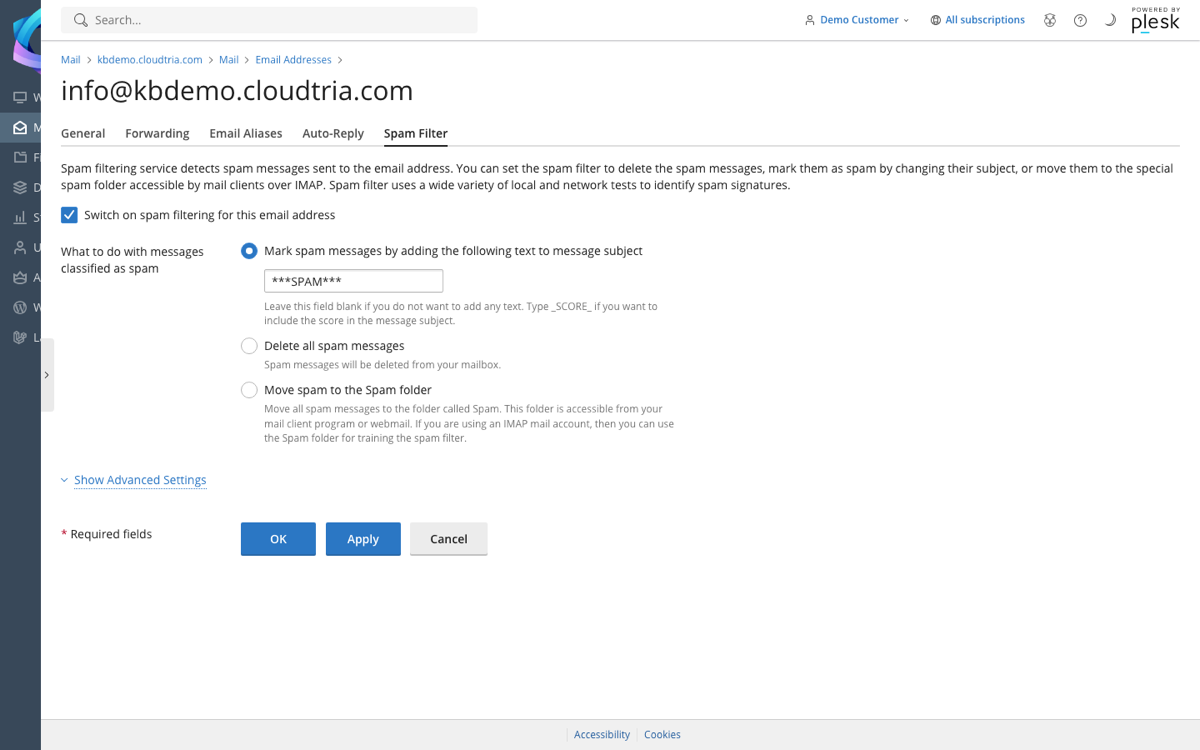
Show Advanced Settings lets you make the filter stricter or more relaxed, and add senders you always or never want to receive.
For businesses that are targeted by phishing, our Email & Phishing Protection service adds stronger scanning and staff training.