
Logs show every request to your website and any errors. They are the first place to look when something is not working.
- In the control panel, click your domain, then Logs on the Dashboard tab.
- Use the drop-down at the top right to choose all logs, errors only or access only.
- Filter by date, IP address, status code or message text.
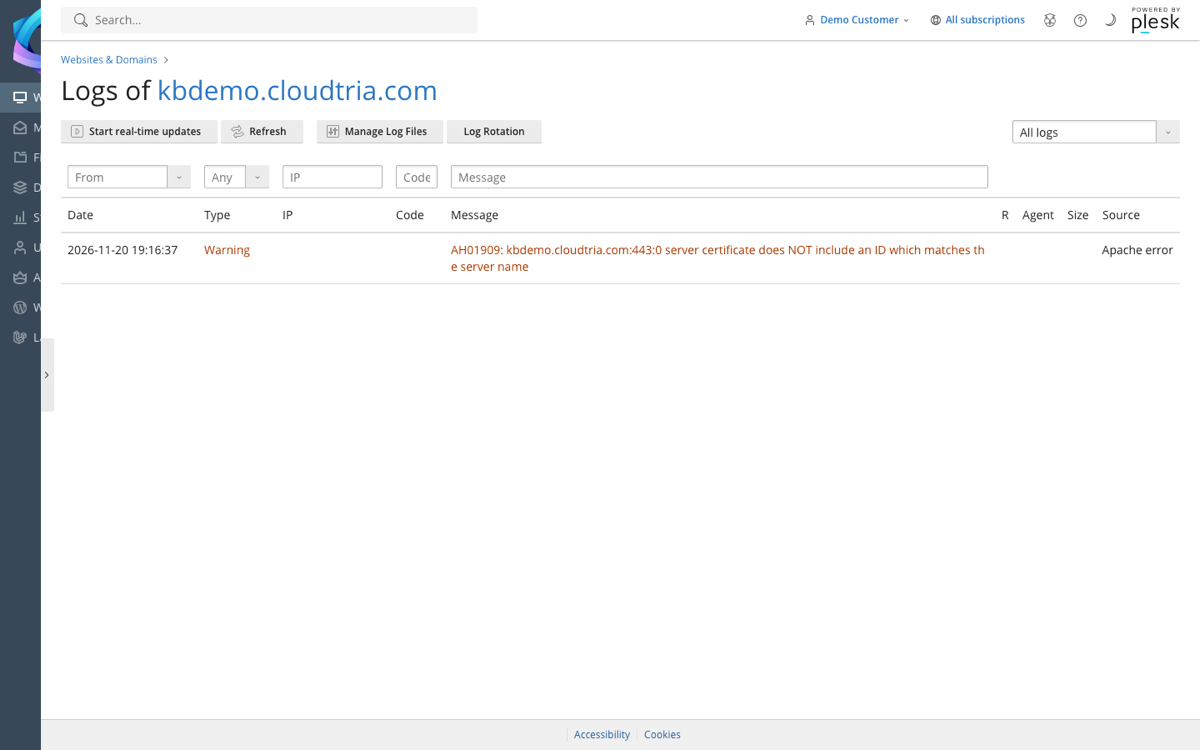
Click Start real-time updates, then load your website in another tab to watch errors appear as they happen.
| Status code | Means |
|---|---|
| 200 | OK. |
| 301 / 302 | Redirected. |
| 403 | Forbidden: blocked by permissions or a security rule. |
| 404 | Not found. See 404 errors. |
| 500 | Server error, usually a problem in the website's code. The error log entry next to it says what. |
The raw log files are also in the logs folder in the File Manager.