
The File Manager lets you upload, edit and organise your website files in your browser, with no FTP app needed.
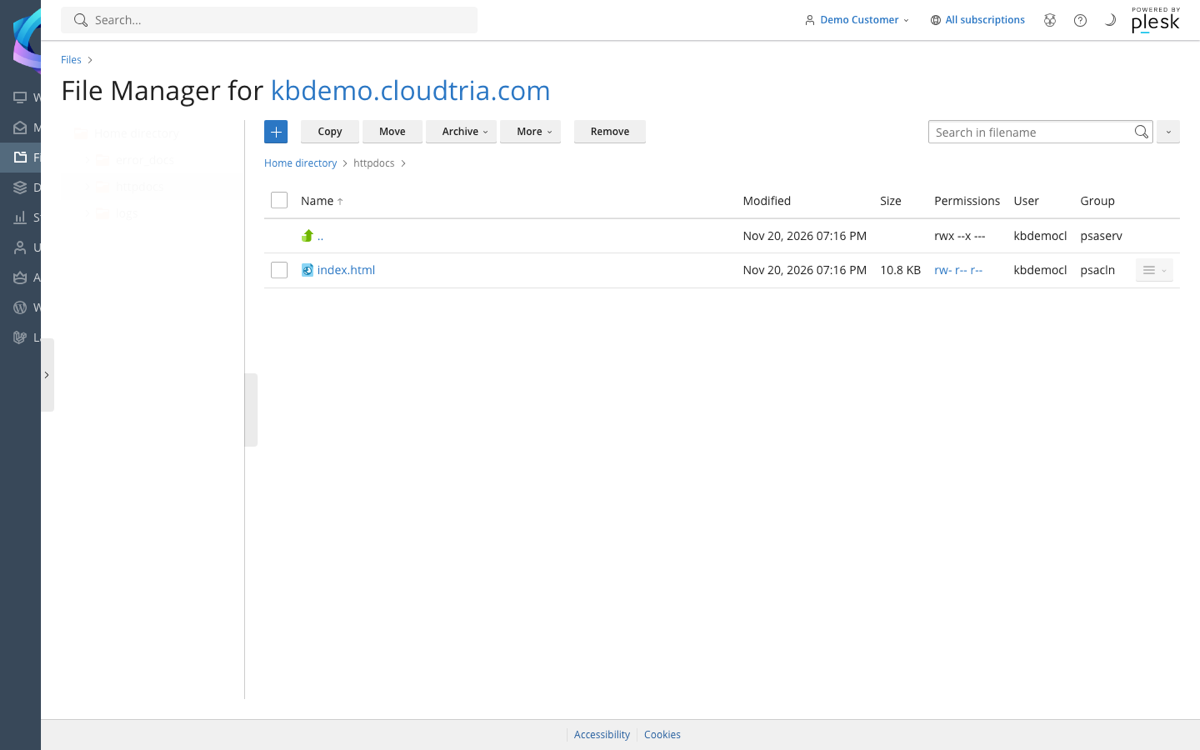
- In the client area, open your hosting service and click File Manager under Quick Shortcuts. Or log in to the control panel and click Files.
- Open
httpdocs. This is your website. See which folder do my files go in.
Common tasks
- Upload: click + then Upload File, or drag files onto the page.
- Create a file or folder: click +, then Create File or Create Directory.
- Edit a file: click its name to open it in the editor, then Save.
- Unzip: upload a .zip file, click the menu (≡) next to it and choose Extract Files. This is the fastest way to upload a whole site.
- Copy, move or delete: tick files and use the buttons at the top.
Deleted files cannot be recovered from the File Manager. Make a backup before big changes.